Download CEWA Certificates
Windows
Download and run the installer below. It installs both certificates automatically. If Windows SmartScreen blocks it, click More info, then Run anyway.
Download-
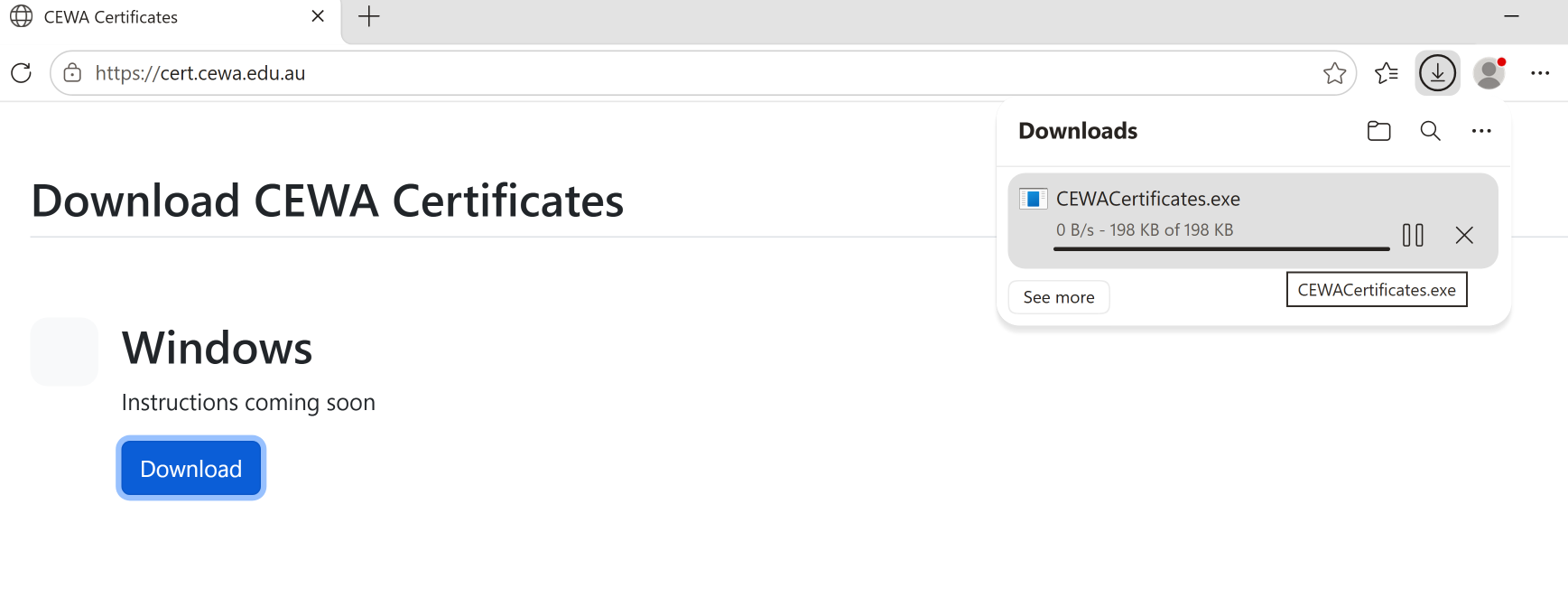
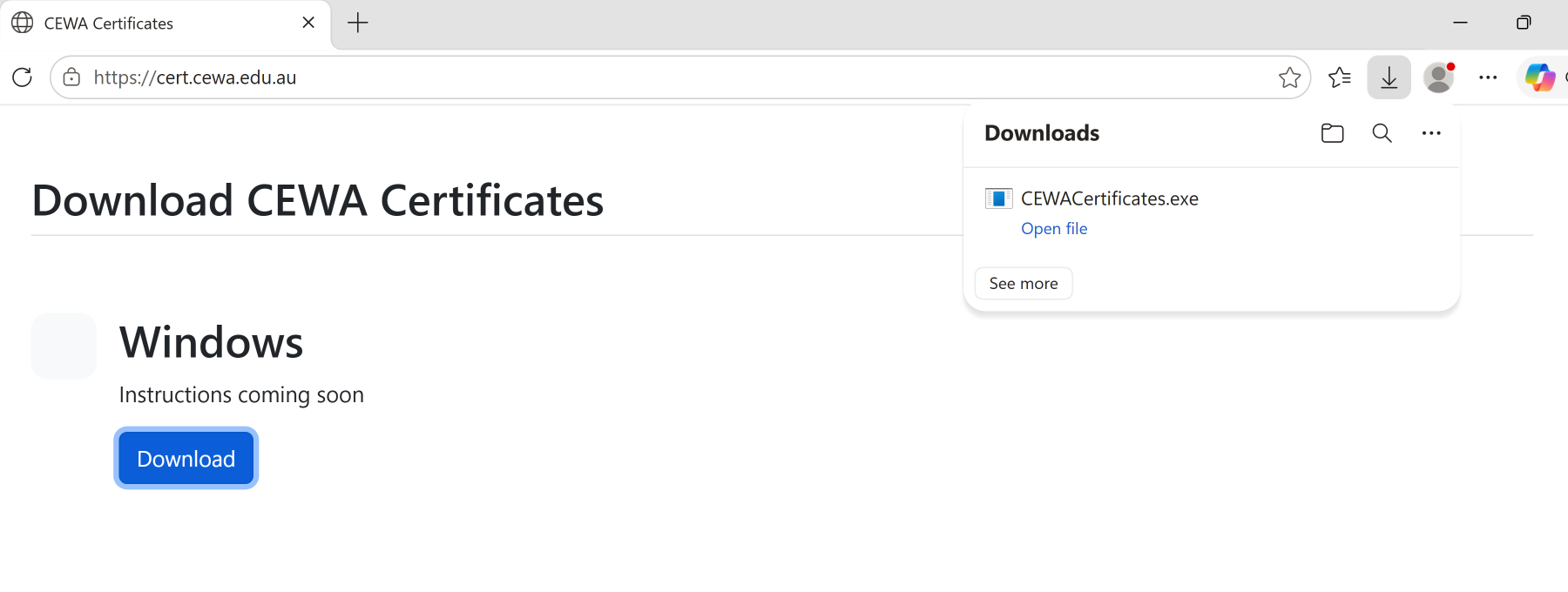
Wait for the download to finish, then click Open file (or open it from your Downloads folder).
-
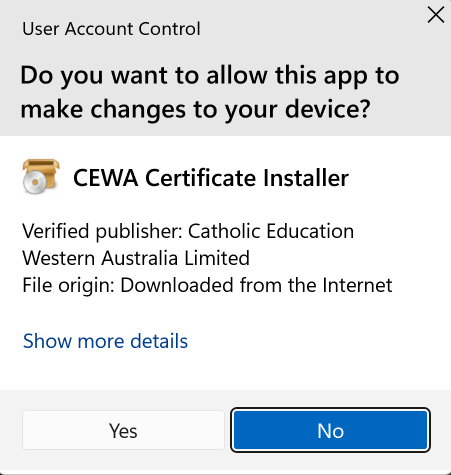
If Windows asks “Do you want to allow this app to make changes to your device?”, confirm the publisher is Catholic Education Western Australia Limited, then click Yes.
-
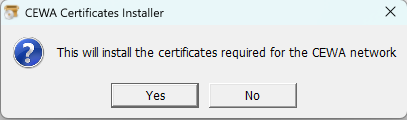
Click Yes on “This will install the certificates required for the CEWA network”.
-
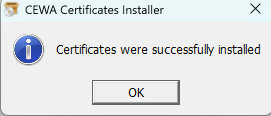
Click OK once you see “Certificates were successfully installed”.
If the installer won't run, or you'd rather install the certificates yourself:
- Download the Root and Internal certificates using the buttons below.
- Double-click the Root certificate file, then choose Install Certificate…
- Select Current User, then Next.
- Choose Place all certificates in the following store, click Browse…, select Trusted Root Certification Authorities, then Next → Finish.
- Click Yes on the security warning to confirm you trust this certificate.
- Repeat steps 2–5 for the Internal certificate, but place it in the Intermediate Certification Authorities store instead.
Did we get the operating system wrong? You can access the other installation methods here: macOS, iOS, Android.
macOS
Download-
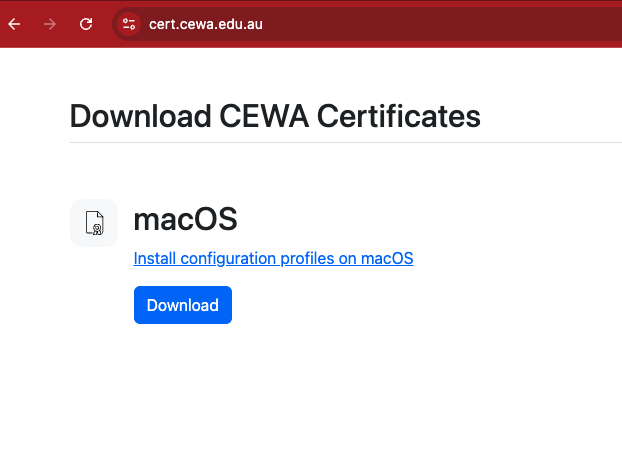
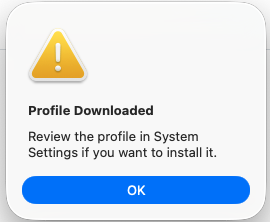
Tap Download above. Your browser downloads the profile and shows a “Profile Downloaded” alert — click OK.
-
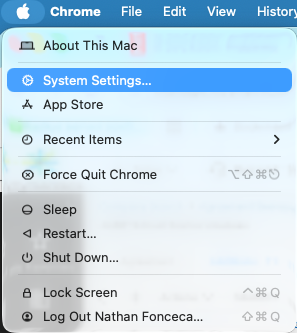
Click the Apple menu → System Settings…
-
Click General, then click Profile Downloaded in the sidebar.
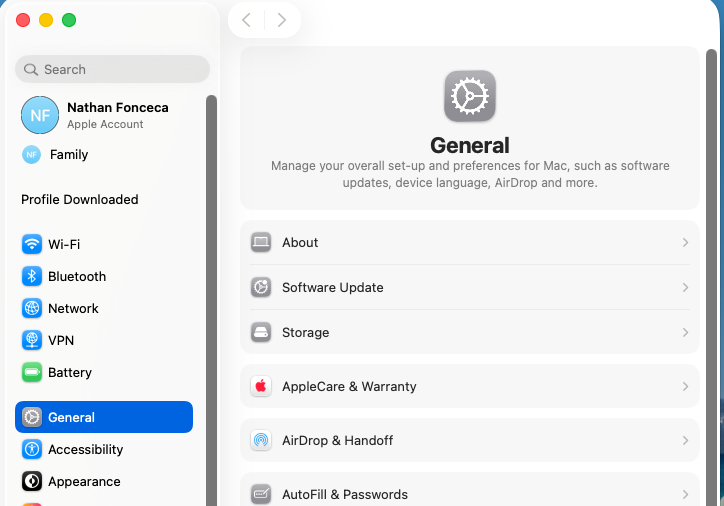
-
On the Device Management page, double-click CEWA Certificates under Downloaded.
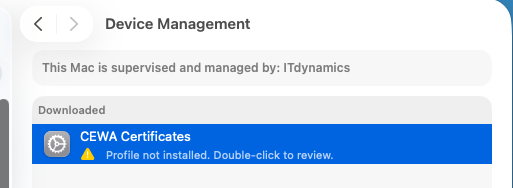
-
Click Install on the profile description.
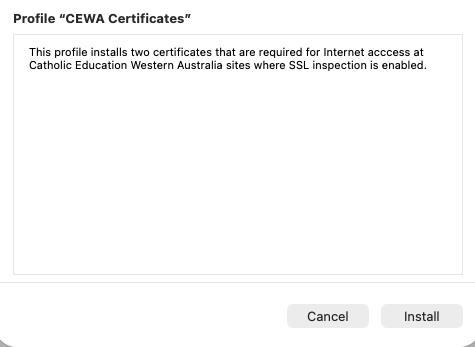
-
Review the certificate details, then click Install… to continue.
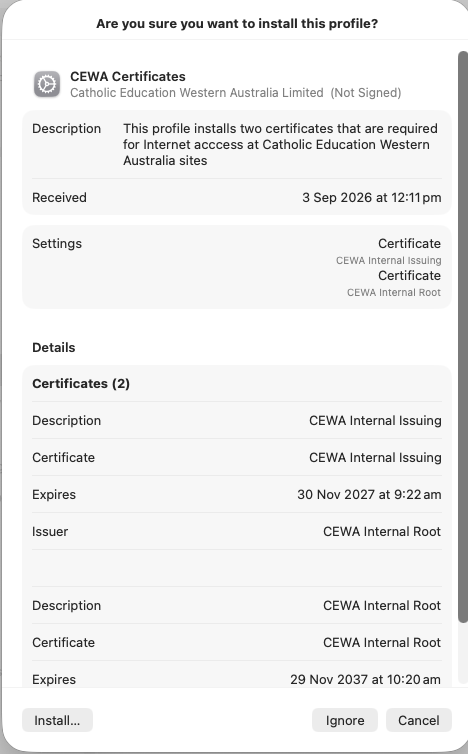
-
Click Install again to confirm you trust this unsigned profile.
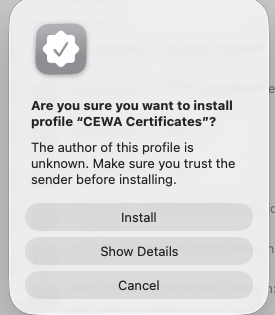
-
Enter your Mac password (or use Touch ID) if prompted to finish installing.
NOTE: You will need to be a local administrator of your MacBook to install this profile.
Did we get the operating system wrong? You can access the other installation methods here: Windows, iOS, Android.
iOS
Download-
Tap Download above, then tap Allow when Safari asks to download the configuration profile.
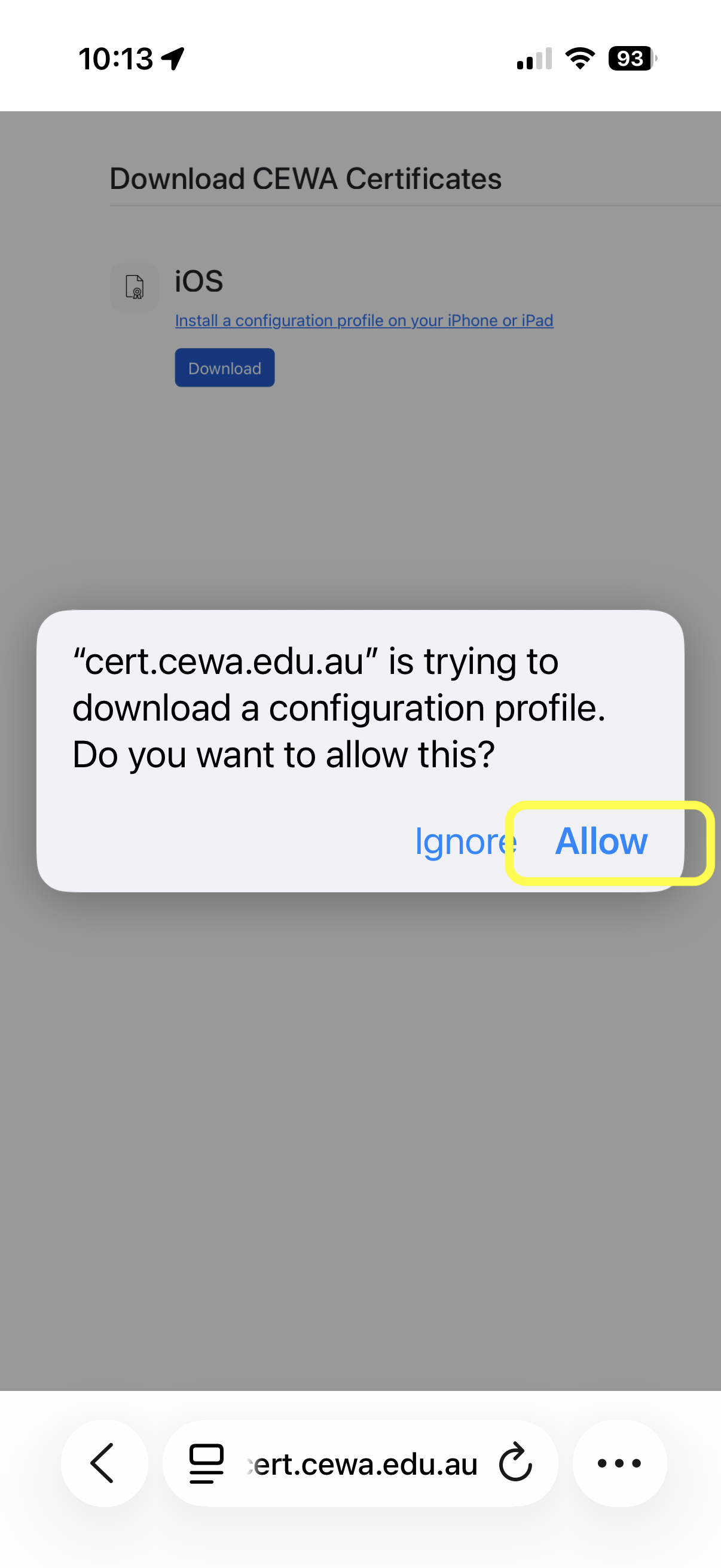
-
Open the Settings app and tap Profile Downloaded at the top.
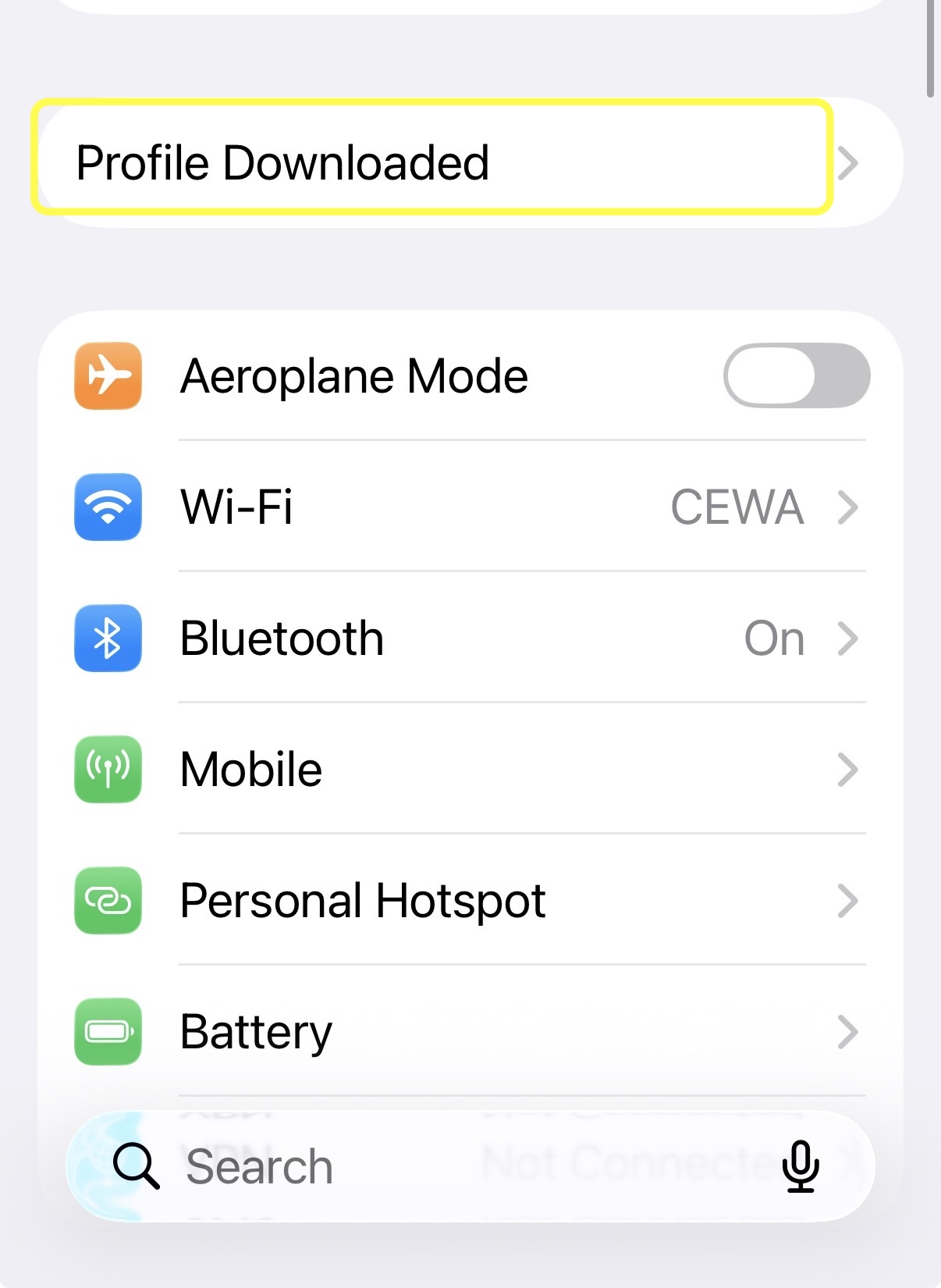
-
Review the profile details, then tap Next.
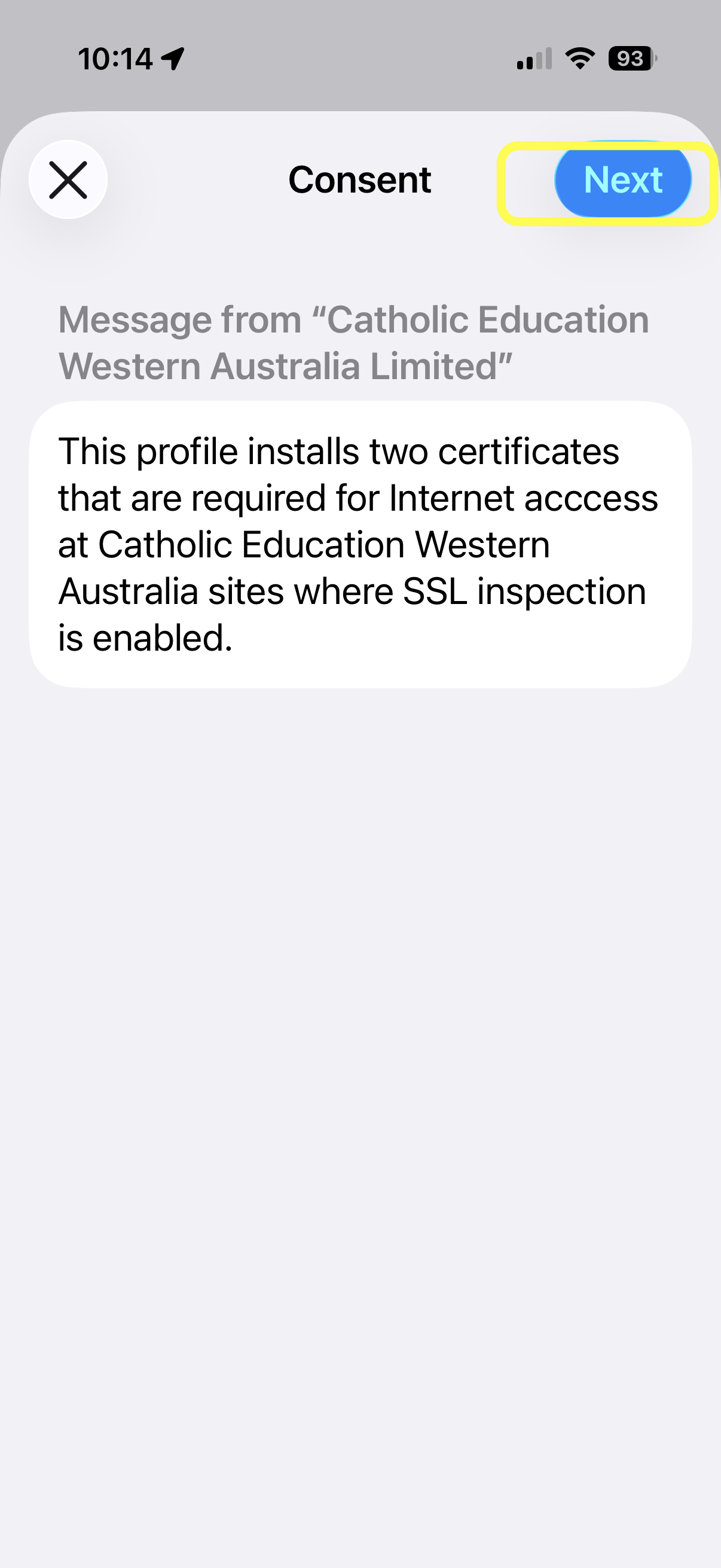
-
Tap Install (enter your passcode if prompted), then tap Install again to confirm the “Unmanaged Root Certificate” warning.
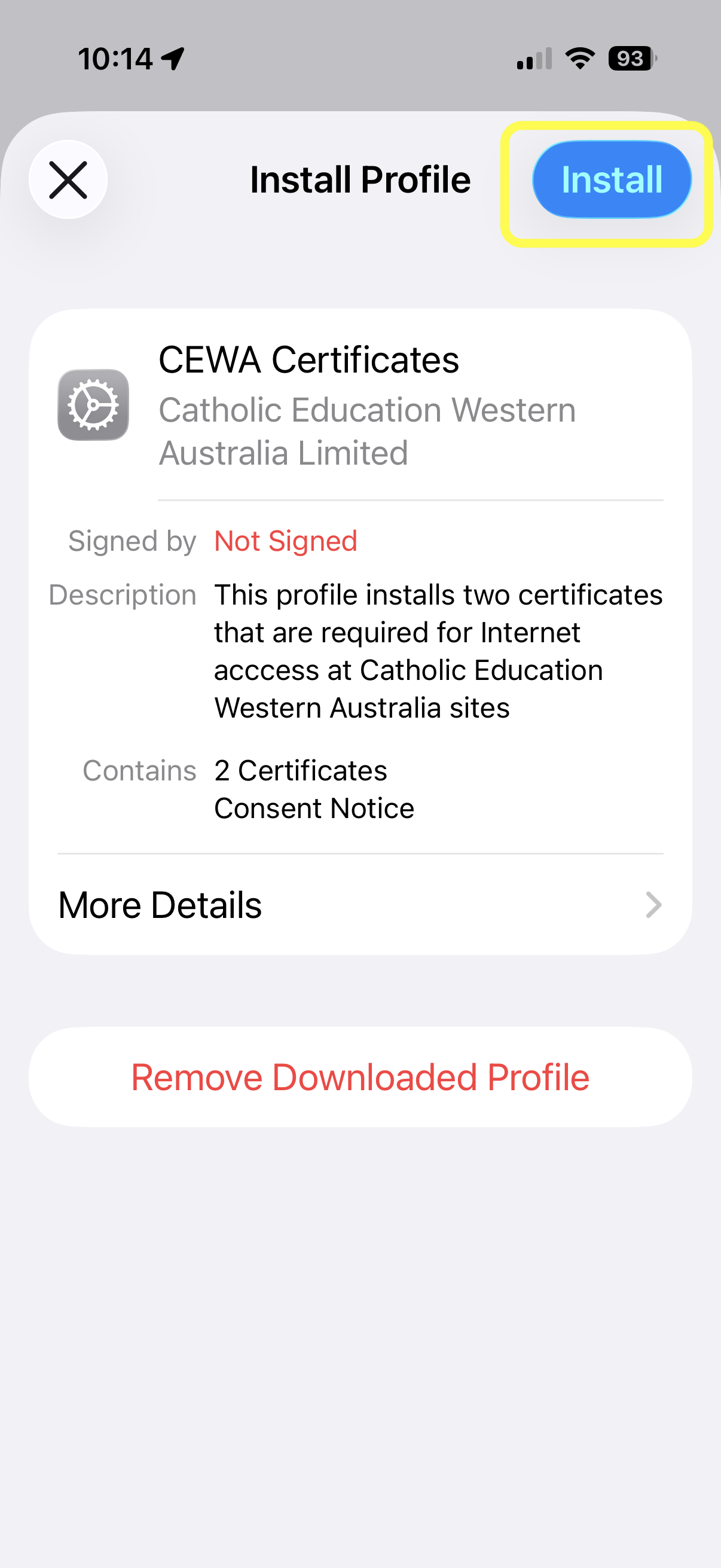
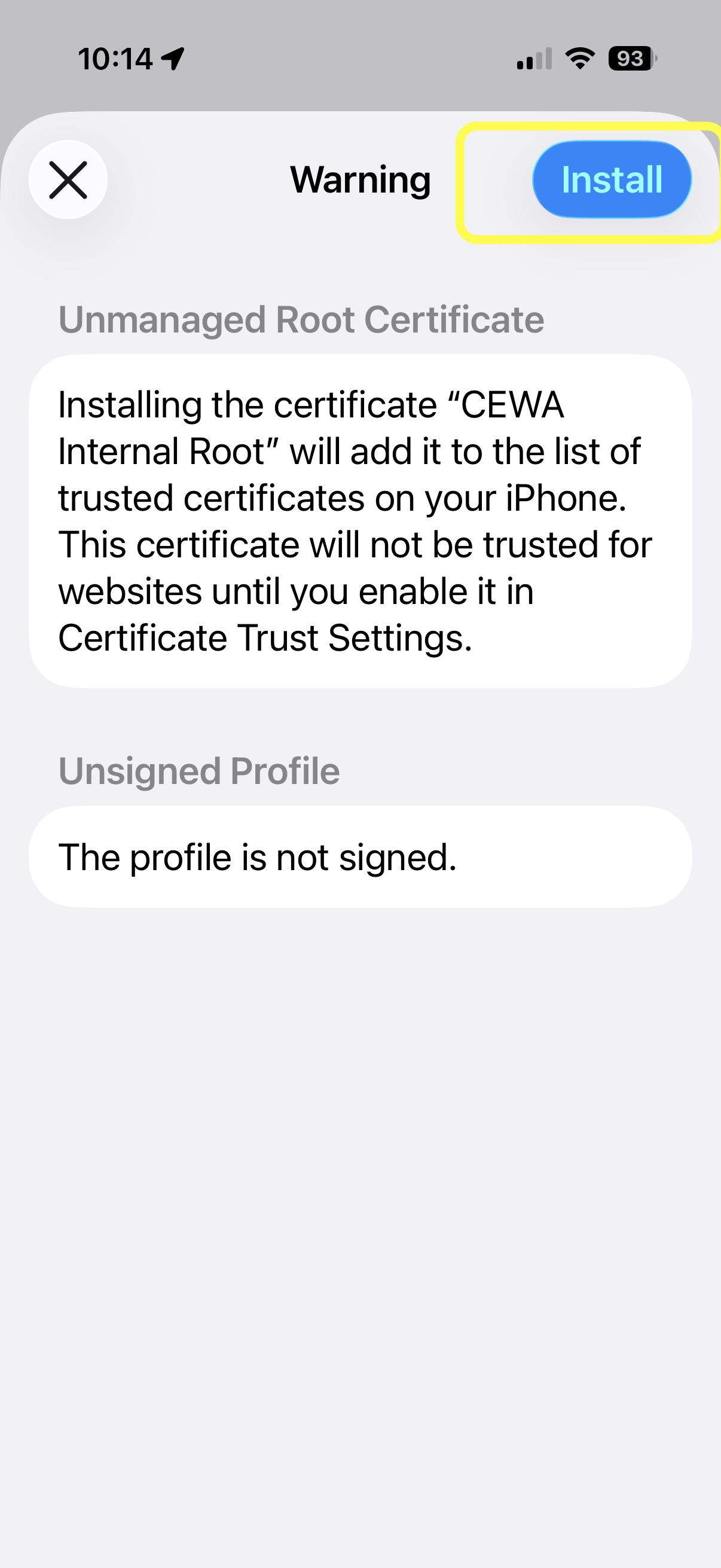
-
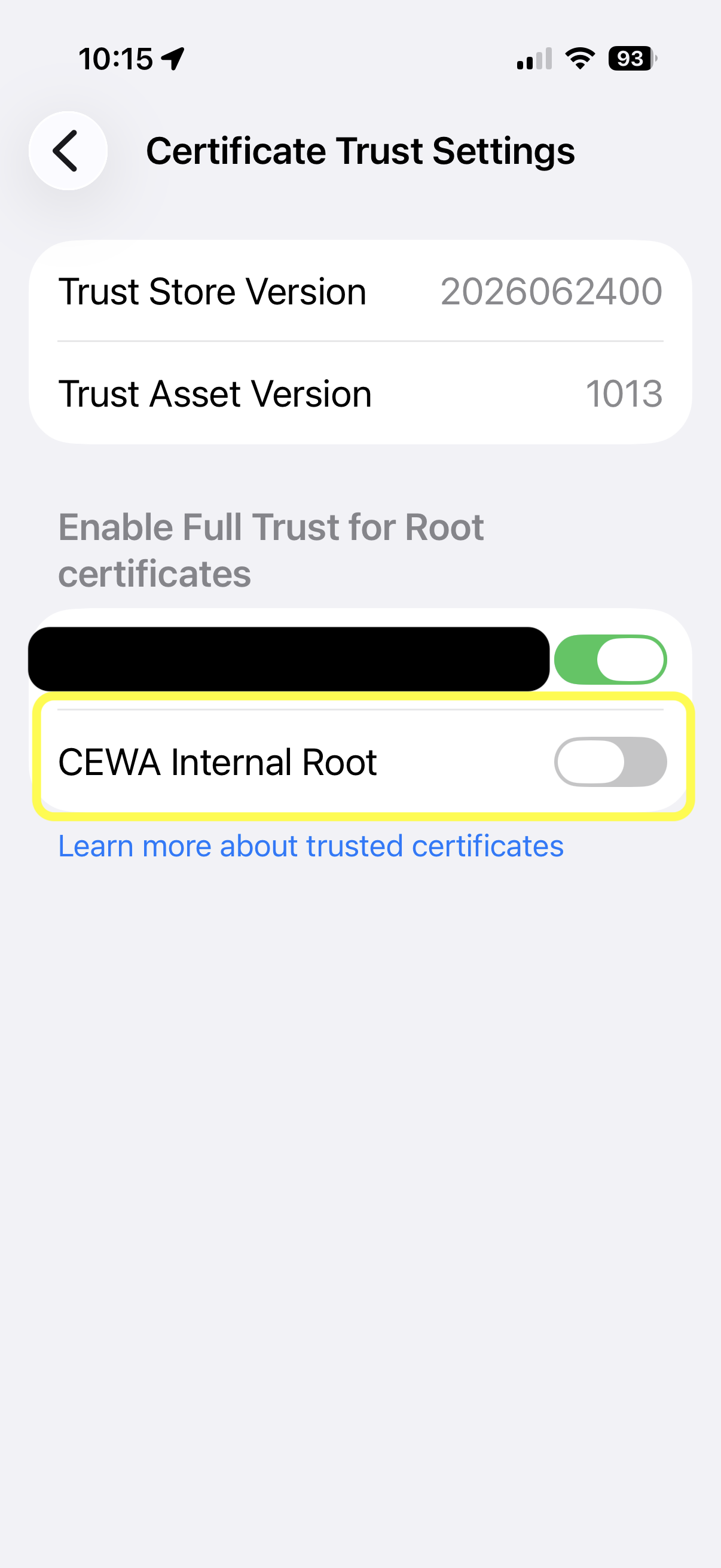
Open Settings → General → About → Certificate Trust Settings.
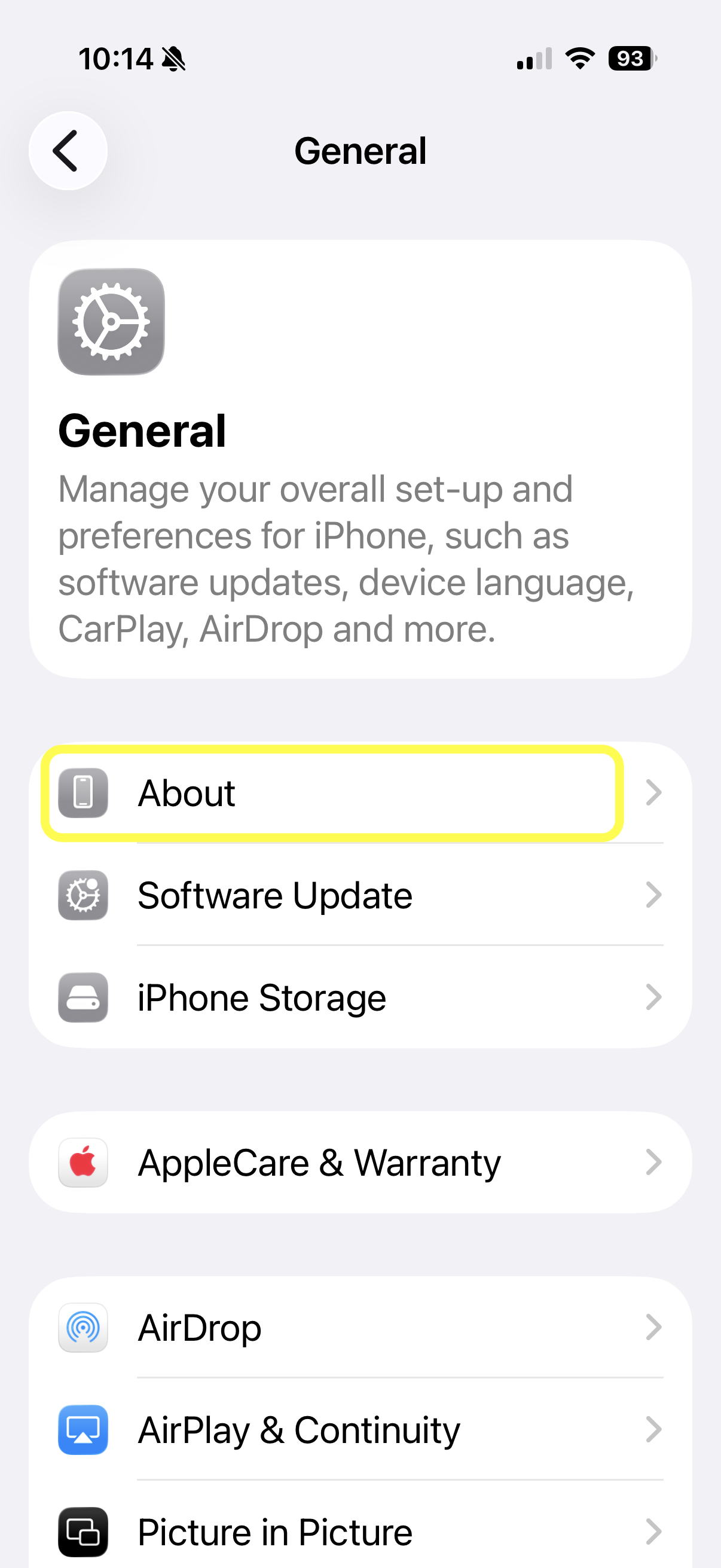
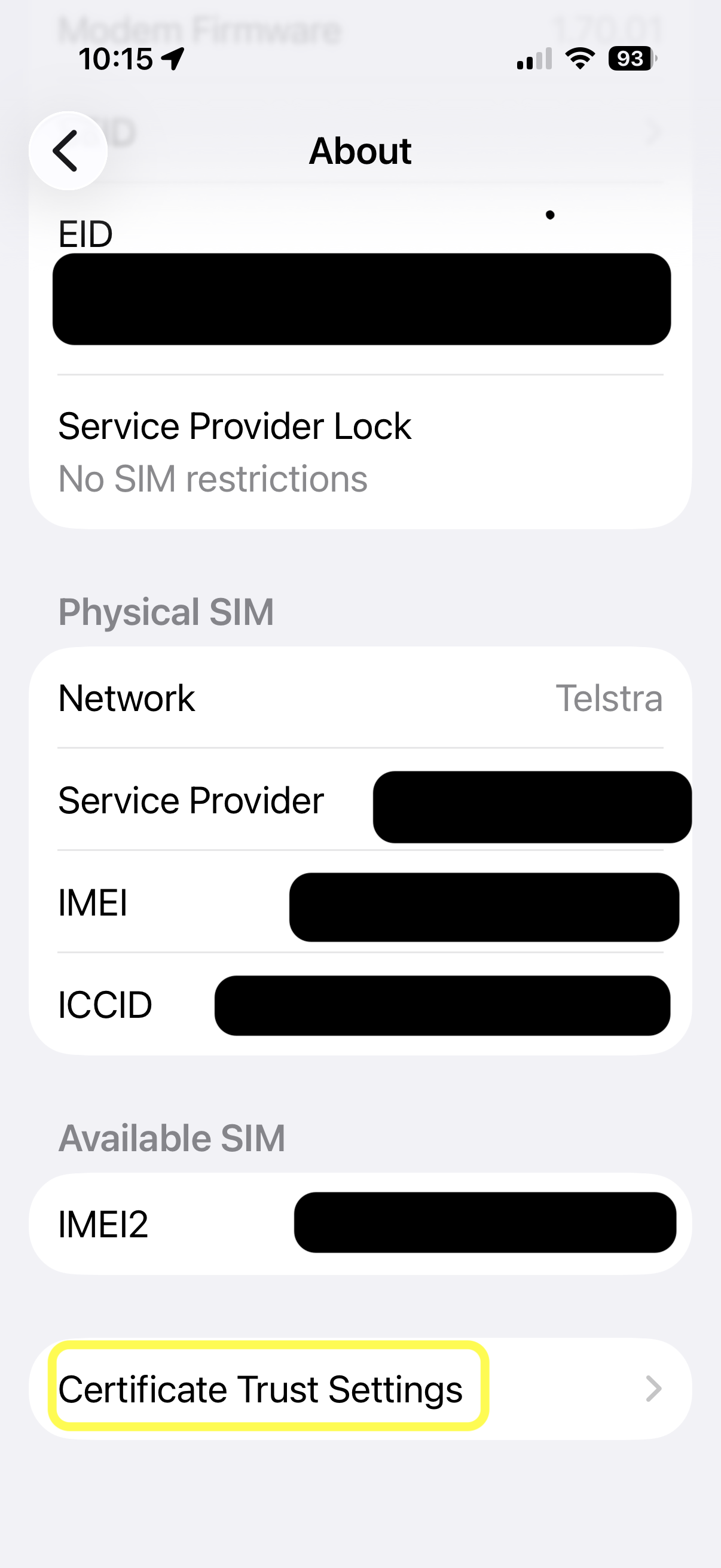
-
Under “Enable Full Trust for Root Certificates,” turn on CEWA Internal Root. Websites won’t trust the certificate until this is switched on.
Did we get the operating system wrong? You can access the other installation methods here: Windows, macOS, Android.
Android
Download Root Certificate Download Internal Certificate- Make sure your device has a screen lock (PIN, pattern or password) set — Android requires this before it will install a certificate.
- Download the Root and Internal certificates using the buttons above.
-
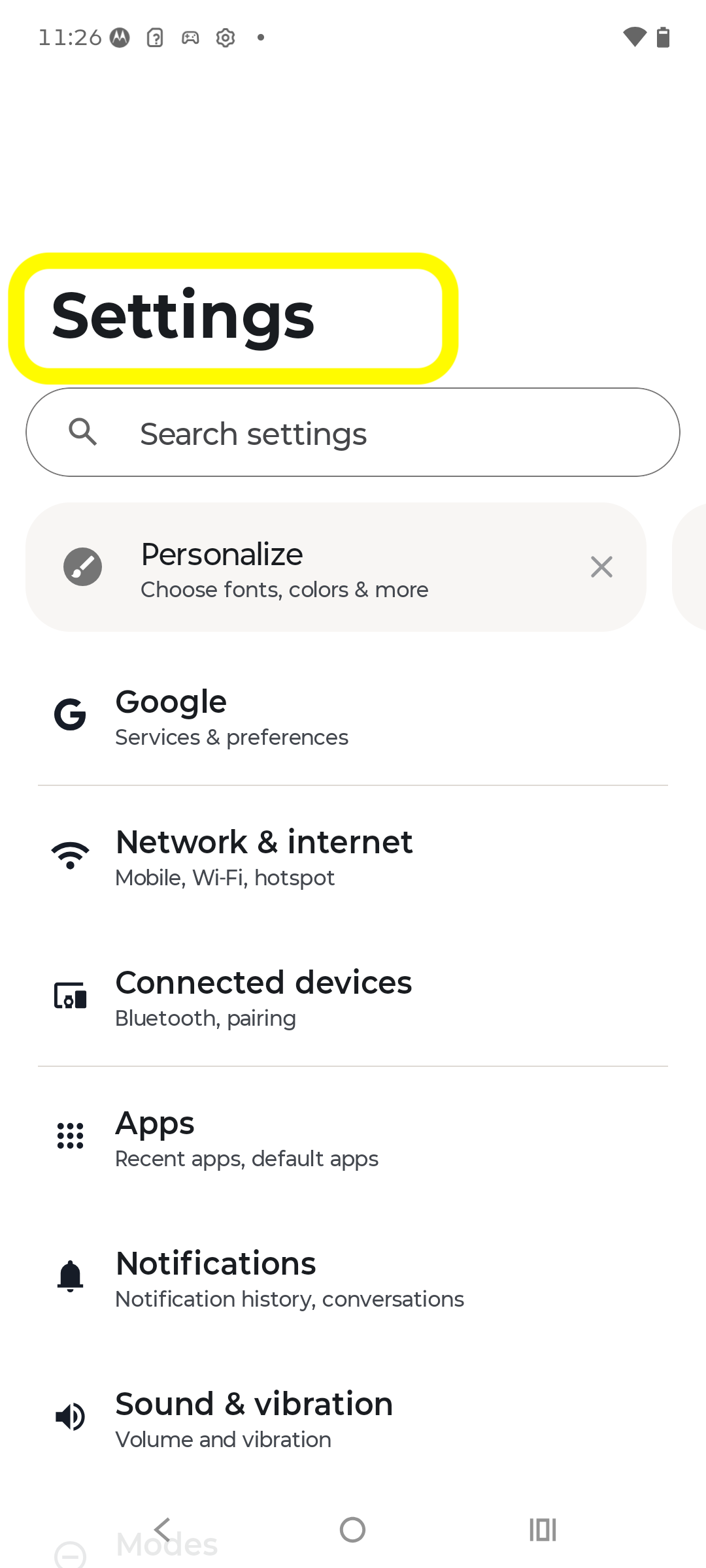
Open the Settings app.
-
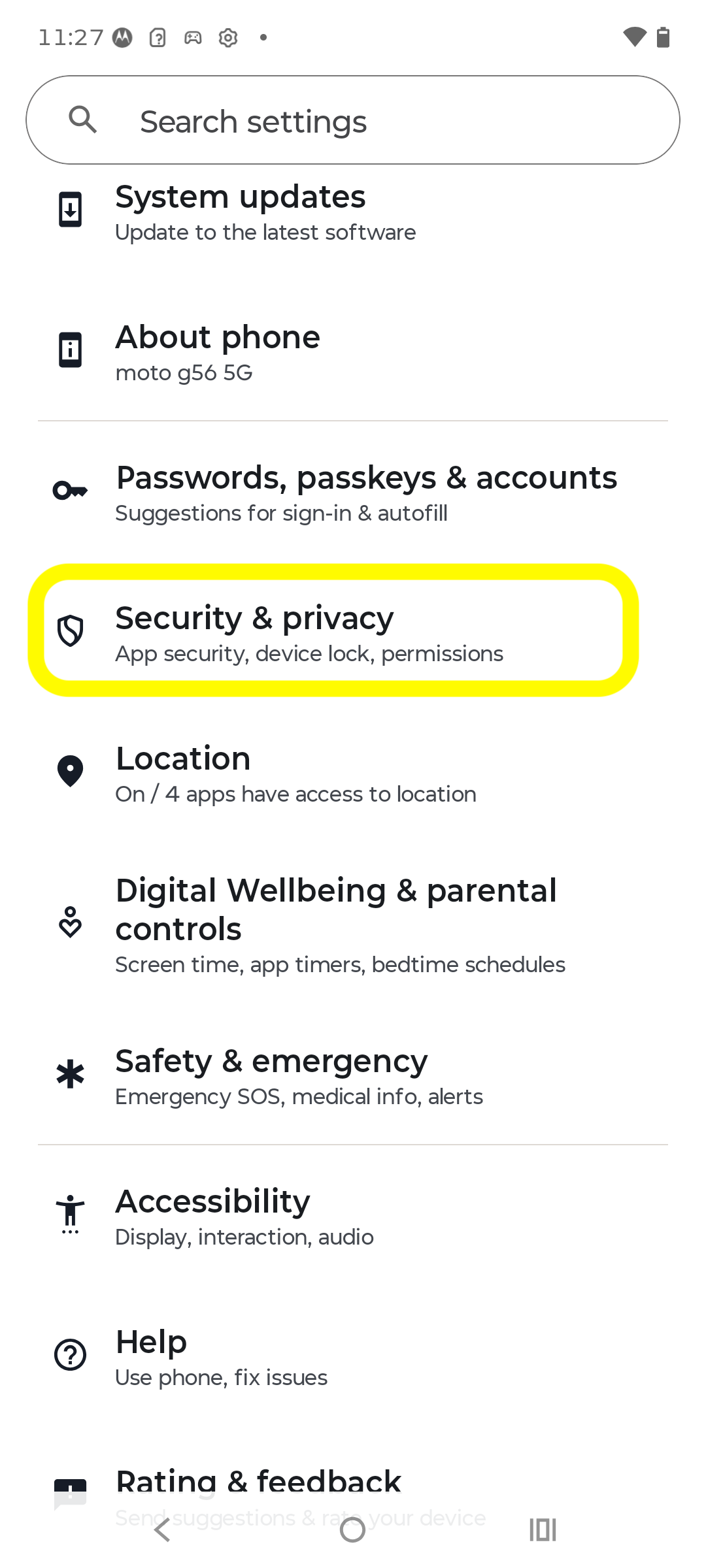
Tap Security & privacy.
-
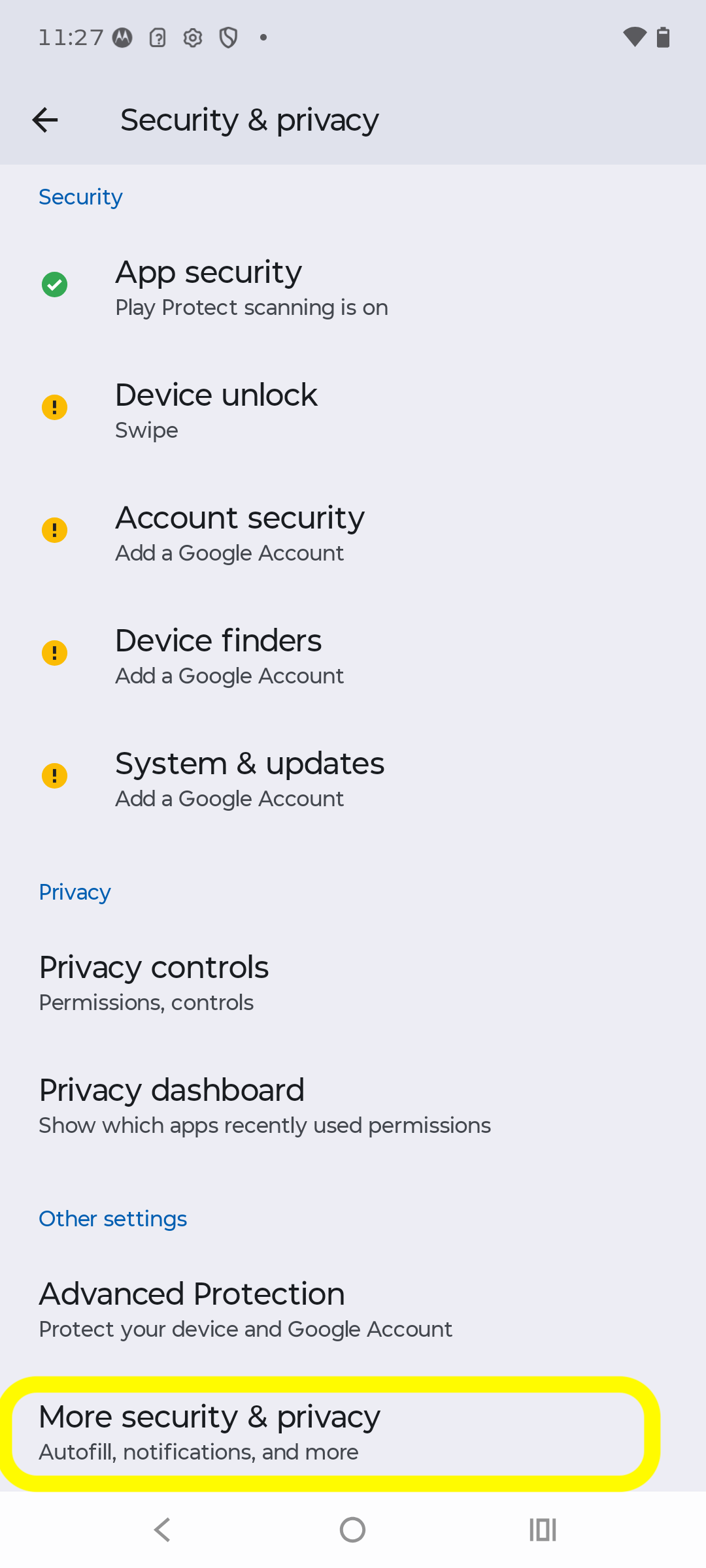
Tap More security & privacy.
-
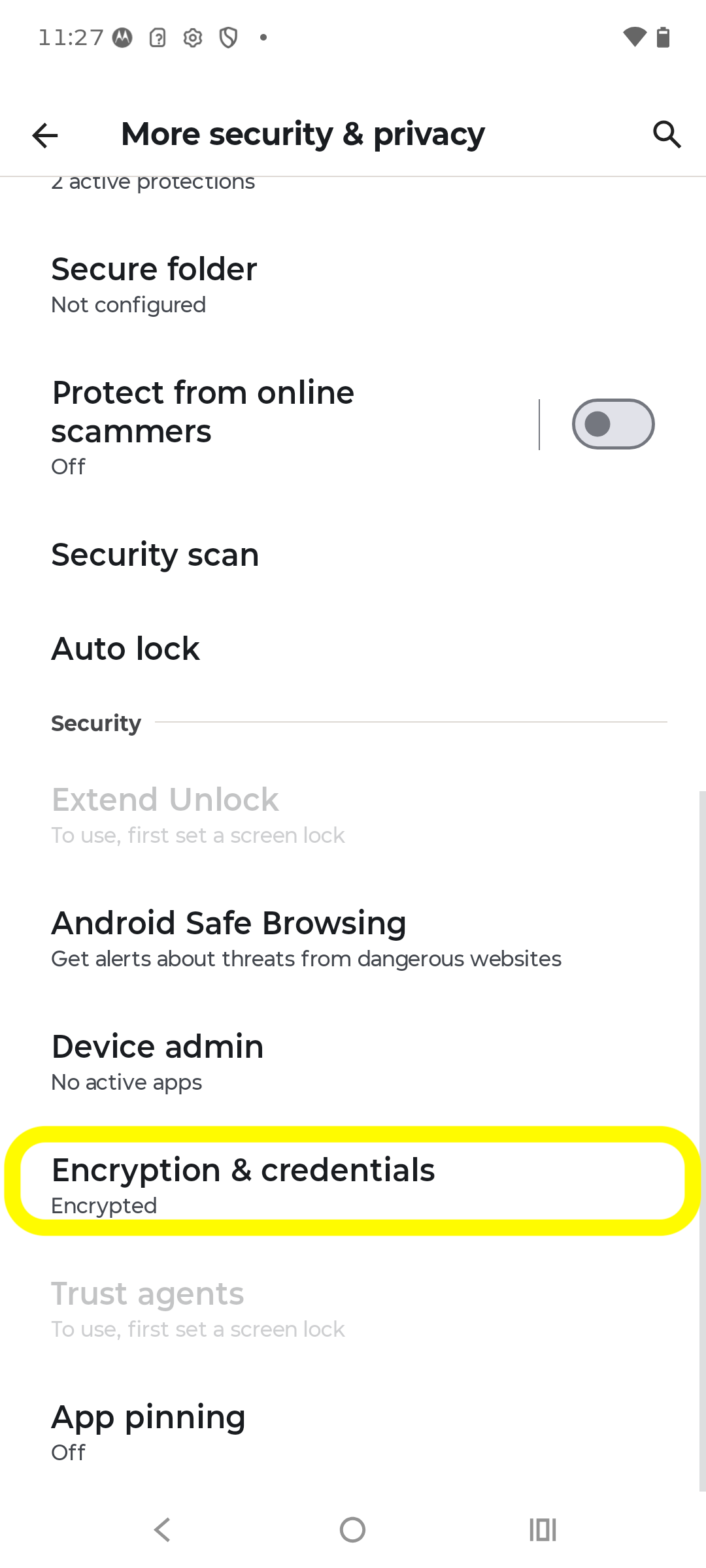
Tap Encryption & credentials.
-
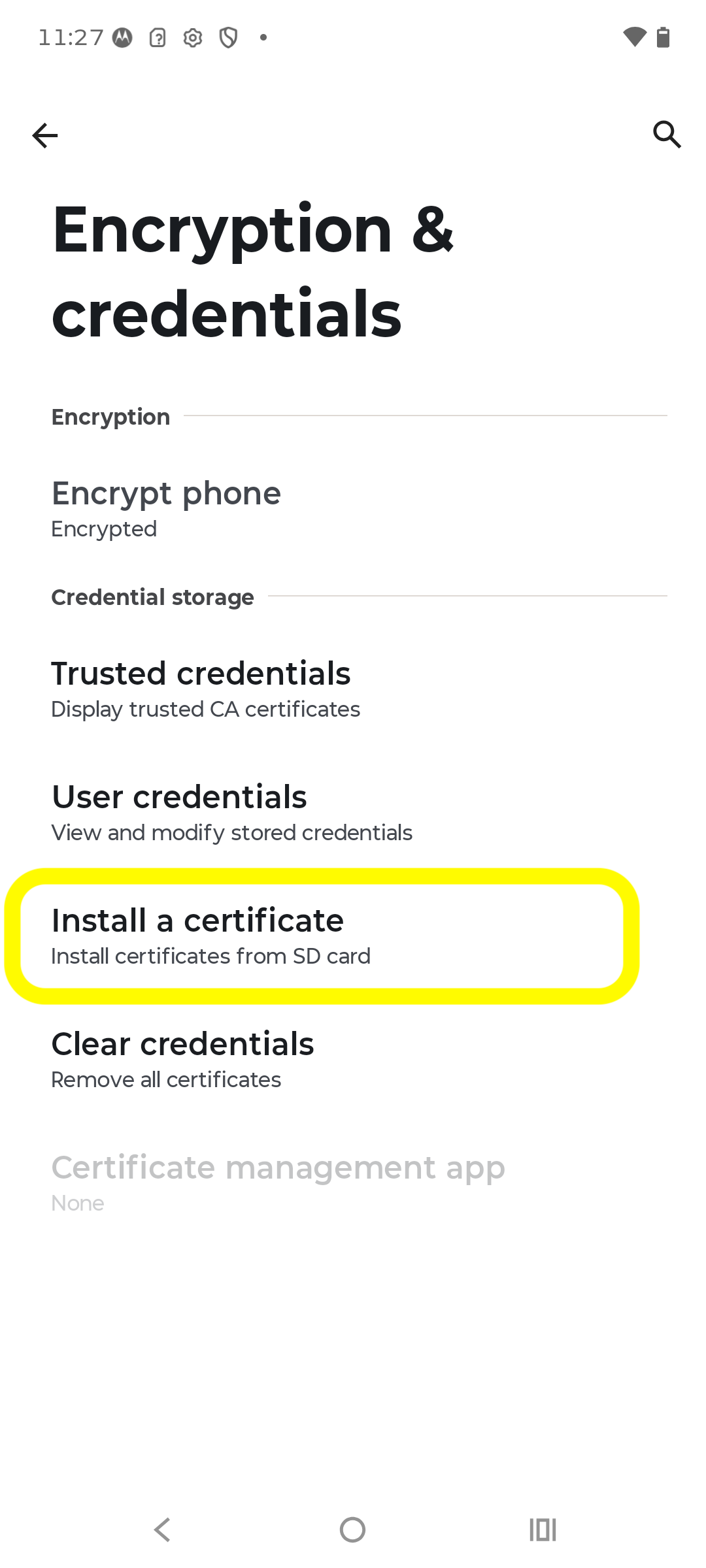
Tap Install a certificate.
-
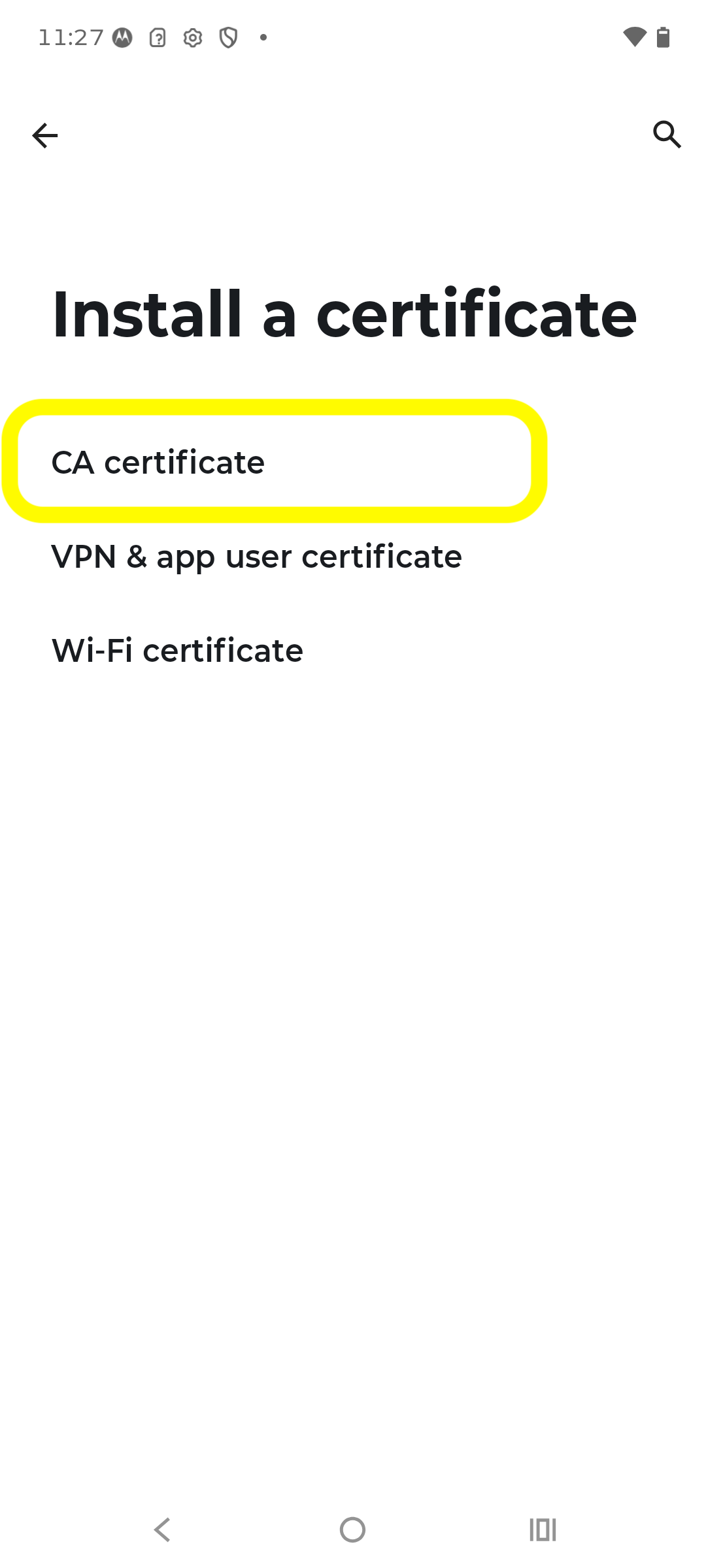
Tap CA certificate.
-
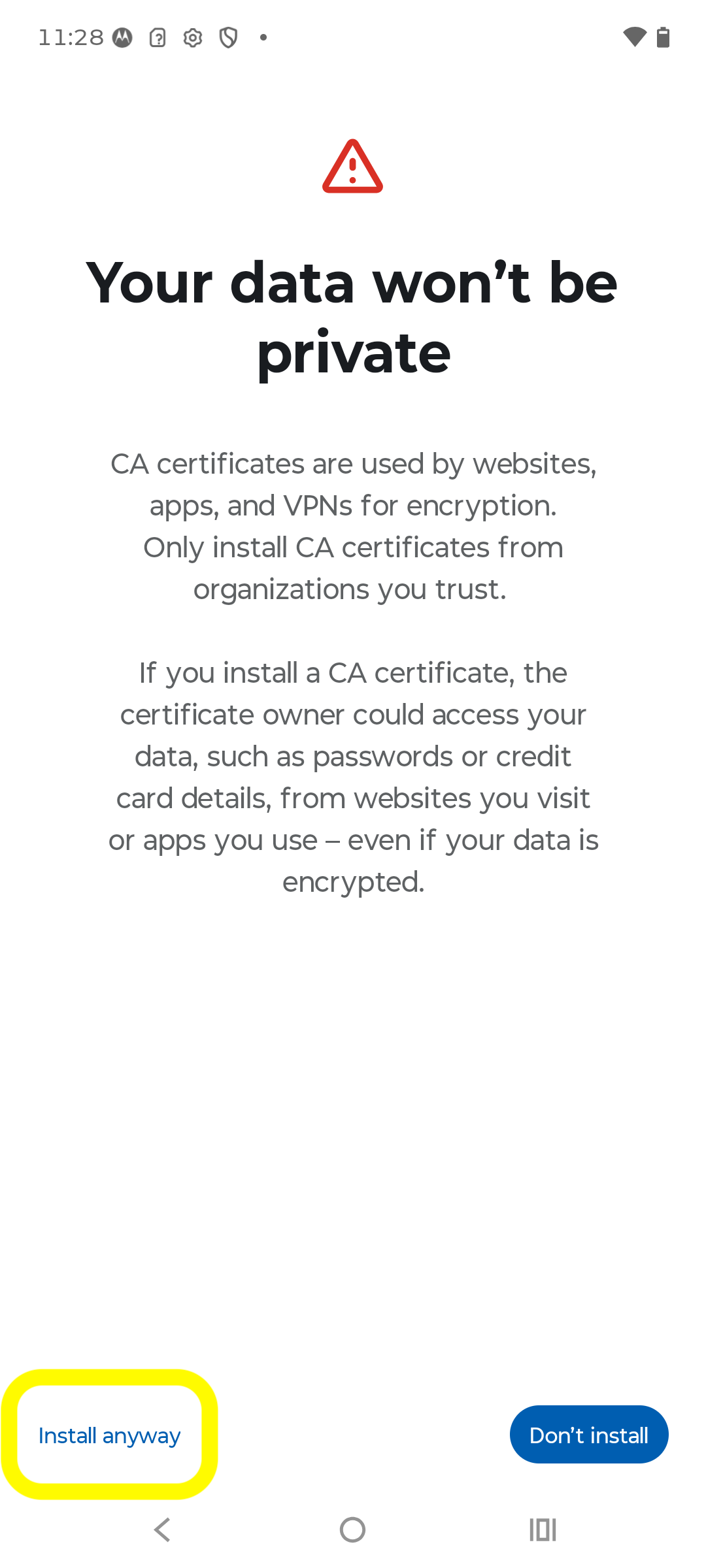
Tap Install anyway on the warning.
-
Select the Root certificate file you downloaded.
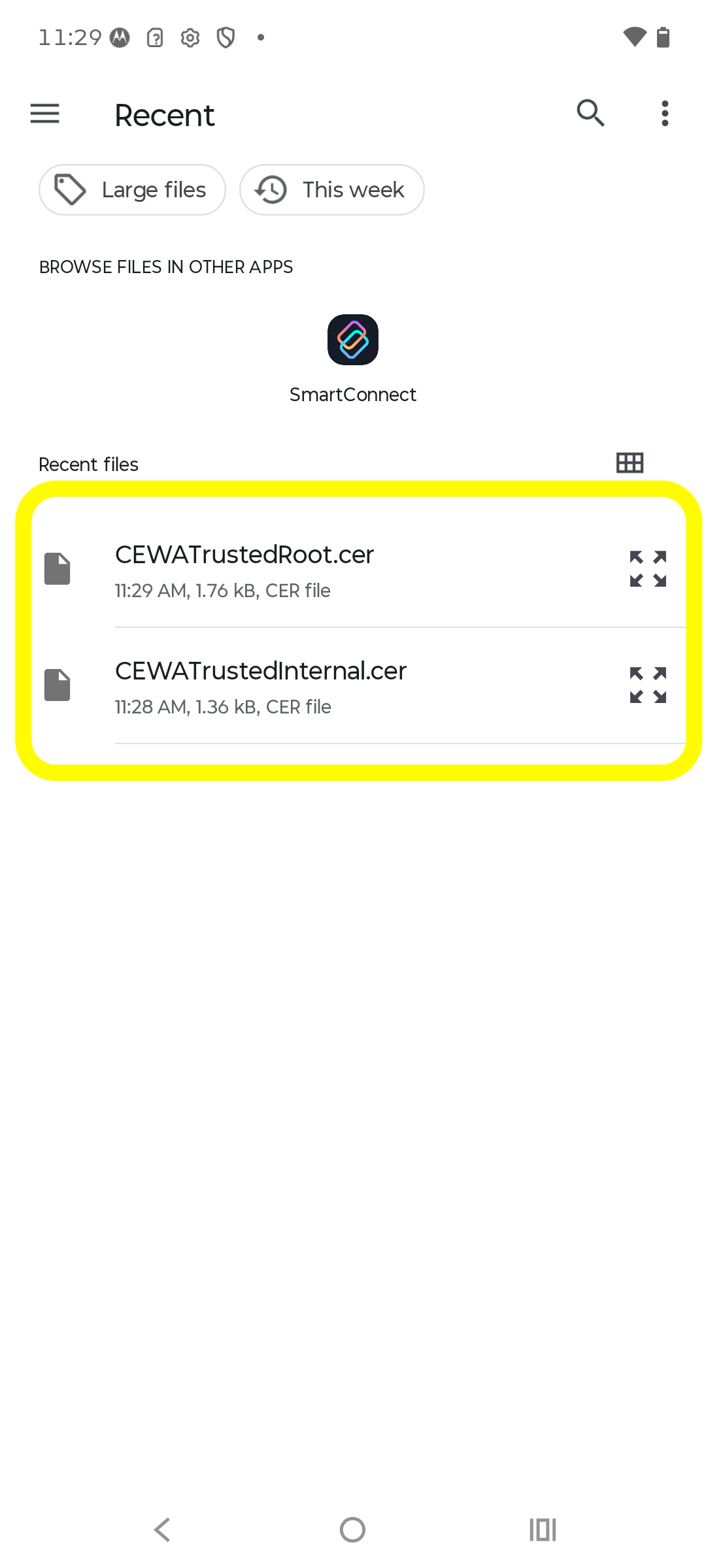
- Repeat the last two steps for the Internal certificate file.
Menu names vary slightly by manufacturer (Samsung, Pixel, etc.) — search Settings for “certificate” if you can't find this menu.
Note: some apps (banking apps, etc.) don't trust manually-installed certificates by Android design, even after this step. Your browser and CEWA web apps will work fine regardless.
Did we get the operating system wrong? You can access the other installation methods here: Windows, macOS, iOS.